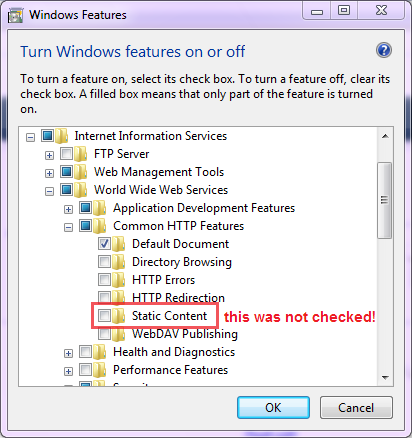
To display images in iis 7 & 7.5 in iTMS application we need to enable static content.
Few minutes ago a colleague and friend asked me about some problem he was having with ASP.NET themes. He was using a theme and including a CSS file in it, the CSS file was linked in the generated HTML but clearly it was not applied. Putting the URL of the CSS file in the browser address bar would return an empty result in Firefox, and a crappy DOCTYPE,HTML,HEAD,BODY tags in IE. The same website works normally with other developers running Windows XP or Windows 7.
Going further to the problem, I tried checking the file access, giving extra permissions and so on, checking web.config and global.asax for any ASP.NET HTTP Handler or HTTP Module that might be handling all requests. None of this existed. Then, I switched to IIS, trying to change the website from custom Application Pool to default integrated pipeline one to default classic (IIS 6 like) one, but no use.
Now I started thinking, images in the website didn’t show also! I didn’t know whether this was a DB/code issue or related to not showing the CSS, well, maybe something is wrong with IIS installation, right? Well, exactly!!!
Here’s what the problem was:

Having installed IIS 7.5 for the first time, the guy thought he just needed to choose ASP.NET features in WWW, he never realized he has to have “Static Content” checked as well. It was really funny when discovered!
Few minutes ago a colleague and friend asked me about some problem he was having with ASP.NET themes. He was using a theme and including a CSS file in it, the CSS file was linked in the generated HTML but clearly it was not applied. Putting the URL of the CSS file in the browser address bar would return an empty result in Firefox, and a crappy DOCTYPE,HTML,HEAD,BODY tags in IE. The same website works normally with other developers running Windows XP or Windows 7.
Going further to the problem, I tried checking the file access, giving extra permissions and so on, checking web.config and global.asax for any ASP.NET HTTP Handler or HTTP Module that might be handling all requests. None of this existed. Then, I switched to IIS, trying to change the website from custom Application Pool to default integrated pipeline one to default classic (IIS 6 like) one, but no use.
Now I started thinking, images in the website didn’t show also! I didn’t know whether this was a DB/code issue or related to not showing the CSS, well, maybe something is wrong with IIS installation, right? Well, exactly!!!
Here’s what the problem was:
Having installed IIS 7.5 for the first time, the guy thought he just needed to choose ASP.NET features in WWW, he never realized he has to have “Static Content” checked as well. It was really funny when discovered!
